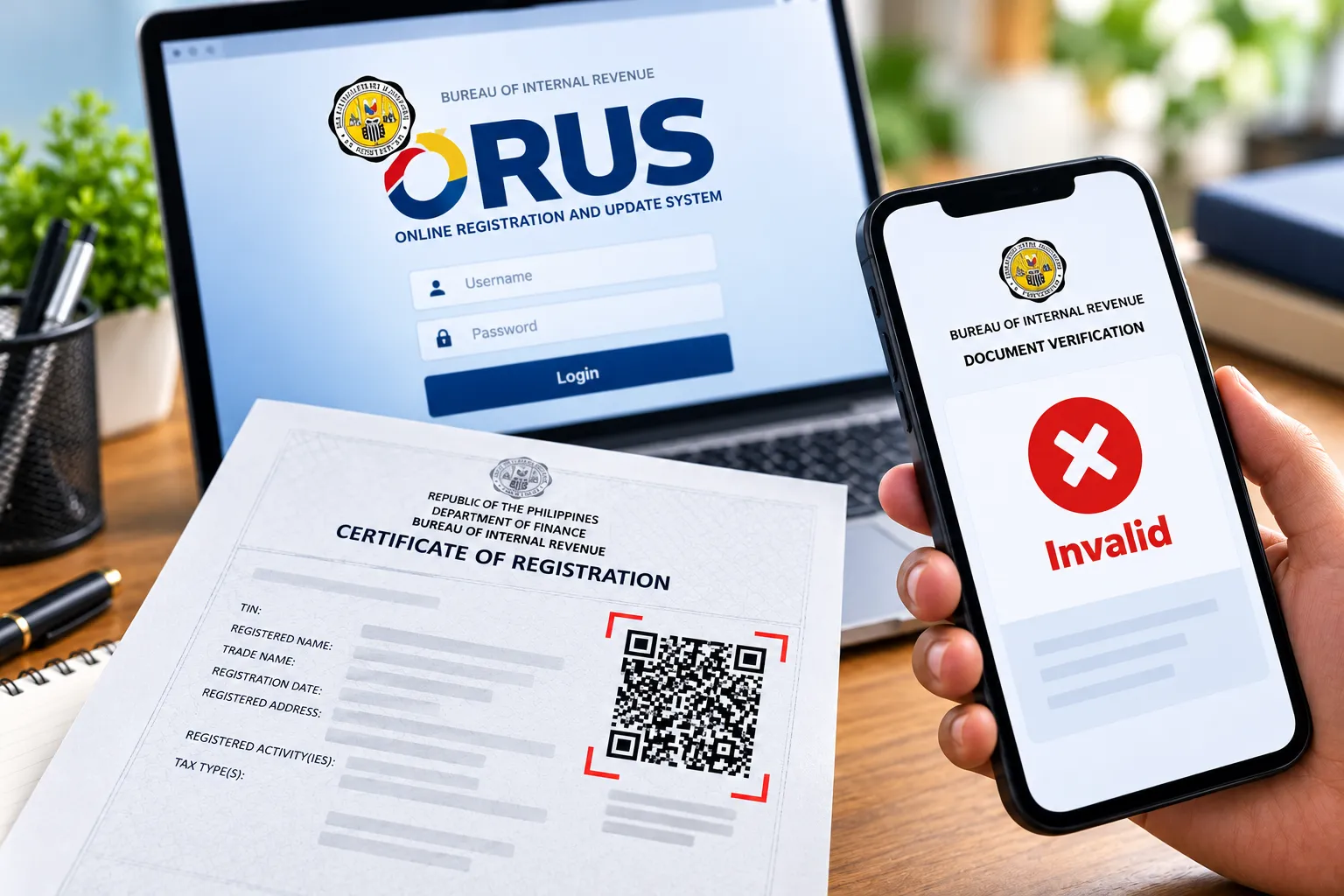

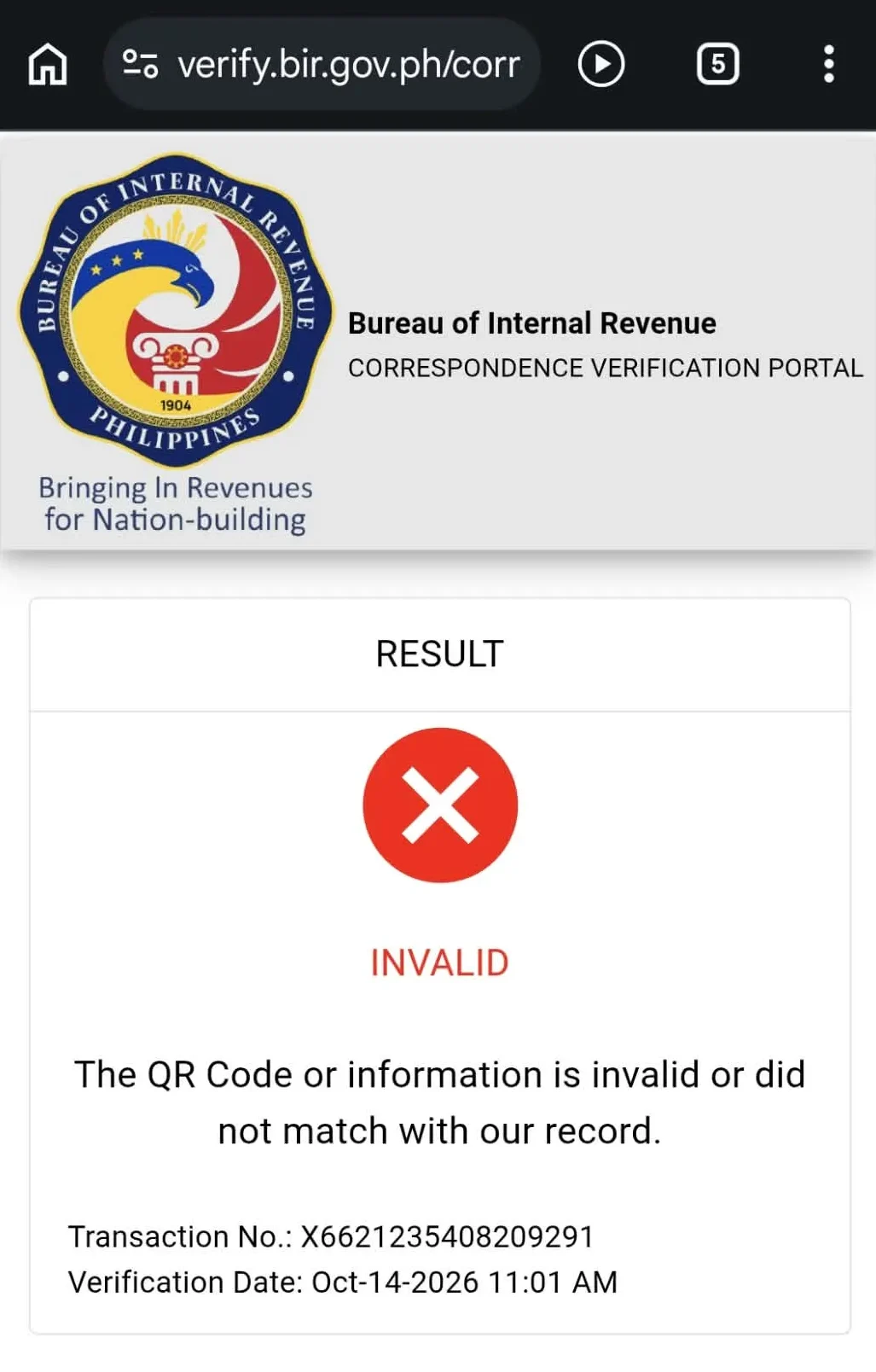
I recently encountered a problem when scanning the QR code on my business’s Certificate of Registration (COR). Instead of displaying the expected verification details, the Bureau of Internal Revenue (BIR) verification website returned an “Invalid” message.
If you’re experiencing the same issue, don’t panic just yet. There is a workaround you can try through your existing Online Registration and Update System (ORUS) account.
What Is BIR’s ORUS?
The Online Registration and Update System (ORUS) is an online platform provided by the Bureau of Internal Revenue that allows taxpayers to access various registration-related services electronically. Depending on the service, taxpayers can use ORUS to register, update their registration information, and access registration documents, including their Certificate of Registration.
The COR contains important details about your BIR registration. Its QR code allows users to access the BIR’s online verification facility to check the document’s authenticity and corresponding information.
However, you may encounter an “Invalid” message when scanning your COR’s QR code. I experienced this problem with my own business registration, but I found a workaround worth trying.
How to Fix the BIR COR QR Code Invalid Error
If you’re already registered with the BIR and have an active ORUS account, follow these steps.
Step 1. Log in to your ORUS account
Visit the official BIR ORUS portal at https://www.bir.gov.ph/eservices/orus and log in using your account credentials.
Step 2. Synchronize your profile data
Once logged in, navigate to your PROFILE page. Look for the blue SYNCHRONIZE button and click it to initiate data synchronization.
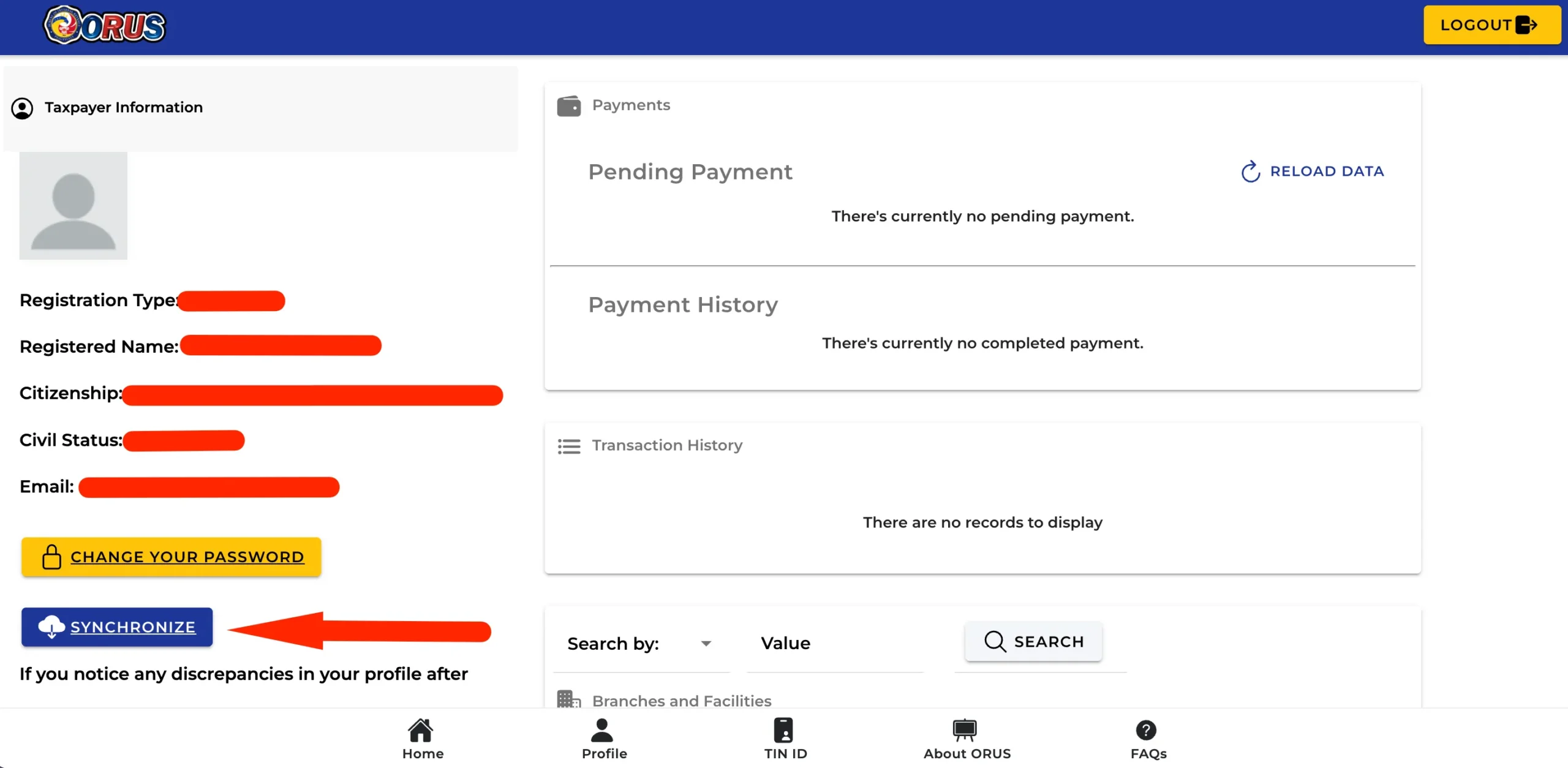
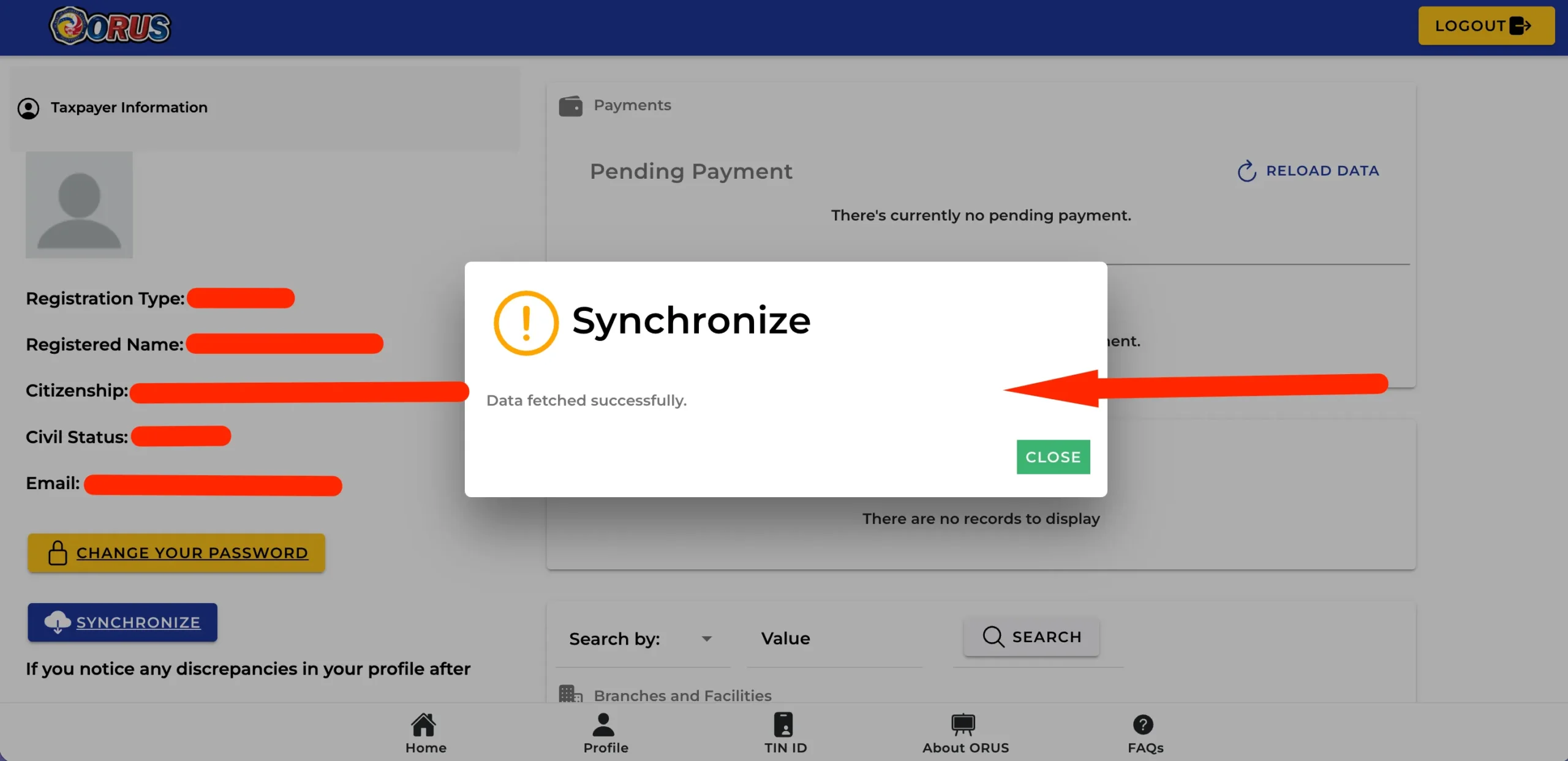
Step 3. Wait for the confirmation message
Allow the system to process your request until you see the message “DATA FETCHED SUCCESSFULLY.”
If necessary, repeat the synchronization process two or three times. This is a workaround I recommend trying, although the exact number of attempts needed may vary.
Step 4. Reload your data
If you’re using a smartphone, scroll down the Profile page until you find the RELOAD DATA option.
If you’re on your desktop computer or laptop, you’ll find this on the right side of your screen.
Click it two or three times to refresh the information displayed in your account.
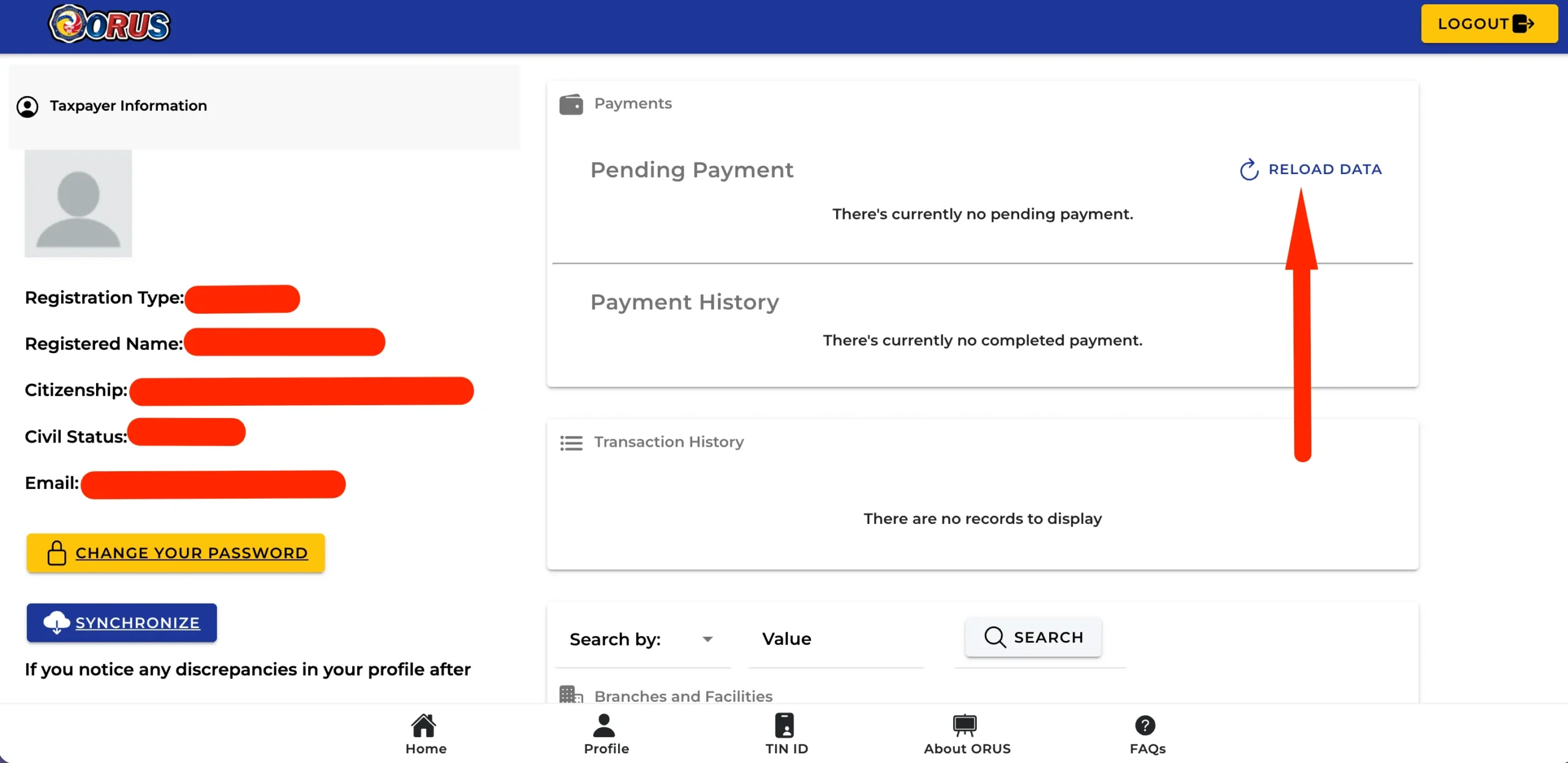
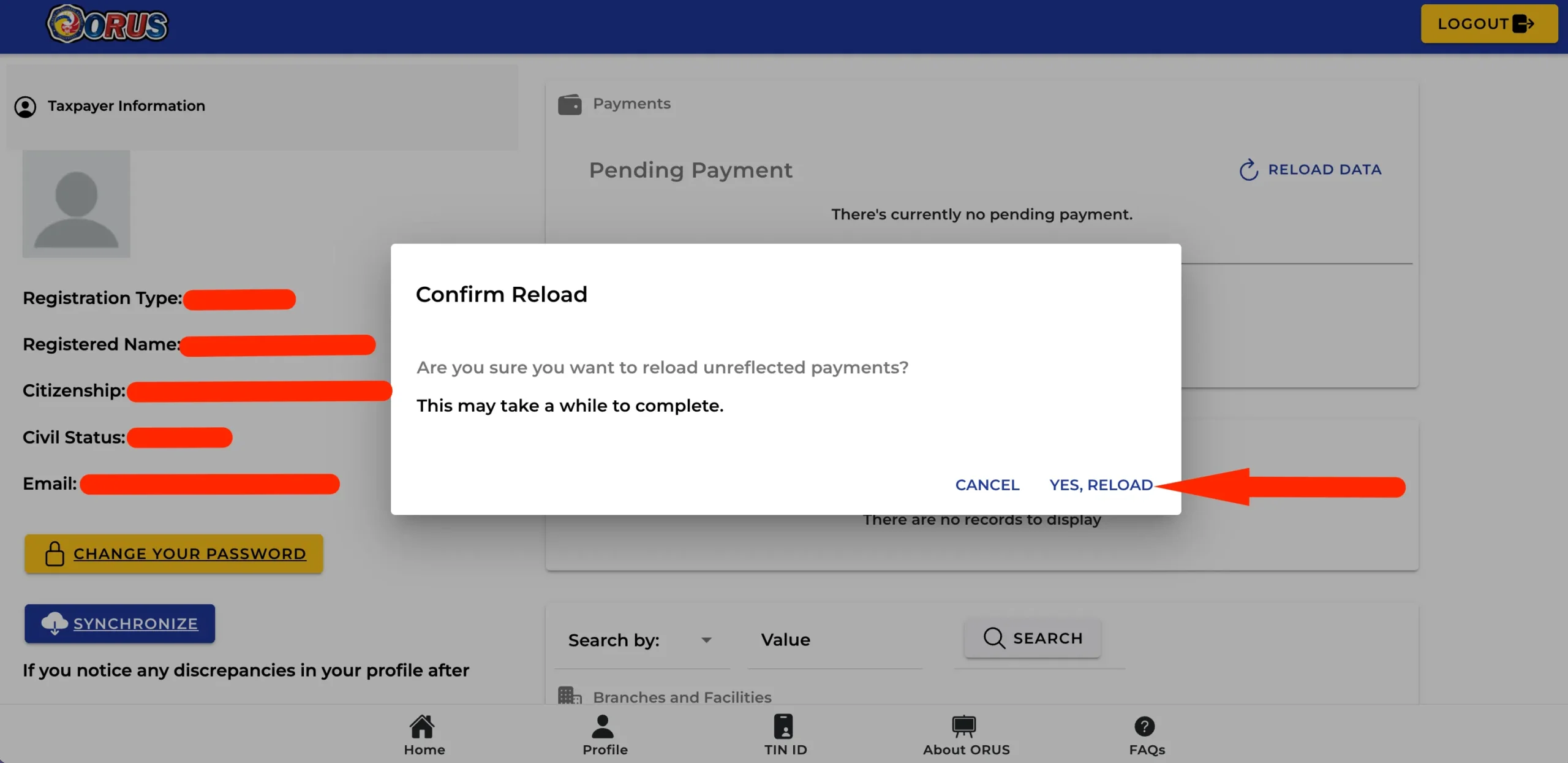
Step 5: Confirm reload
After clicking the RELOAD DATA link, a dialog box will appear. Click the “YES, RELOAD” link.
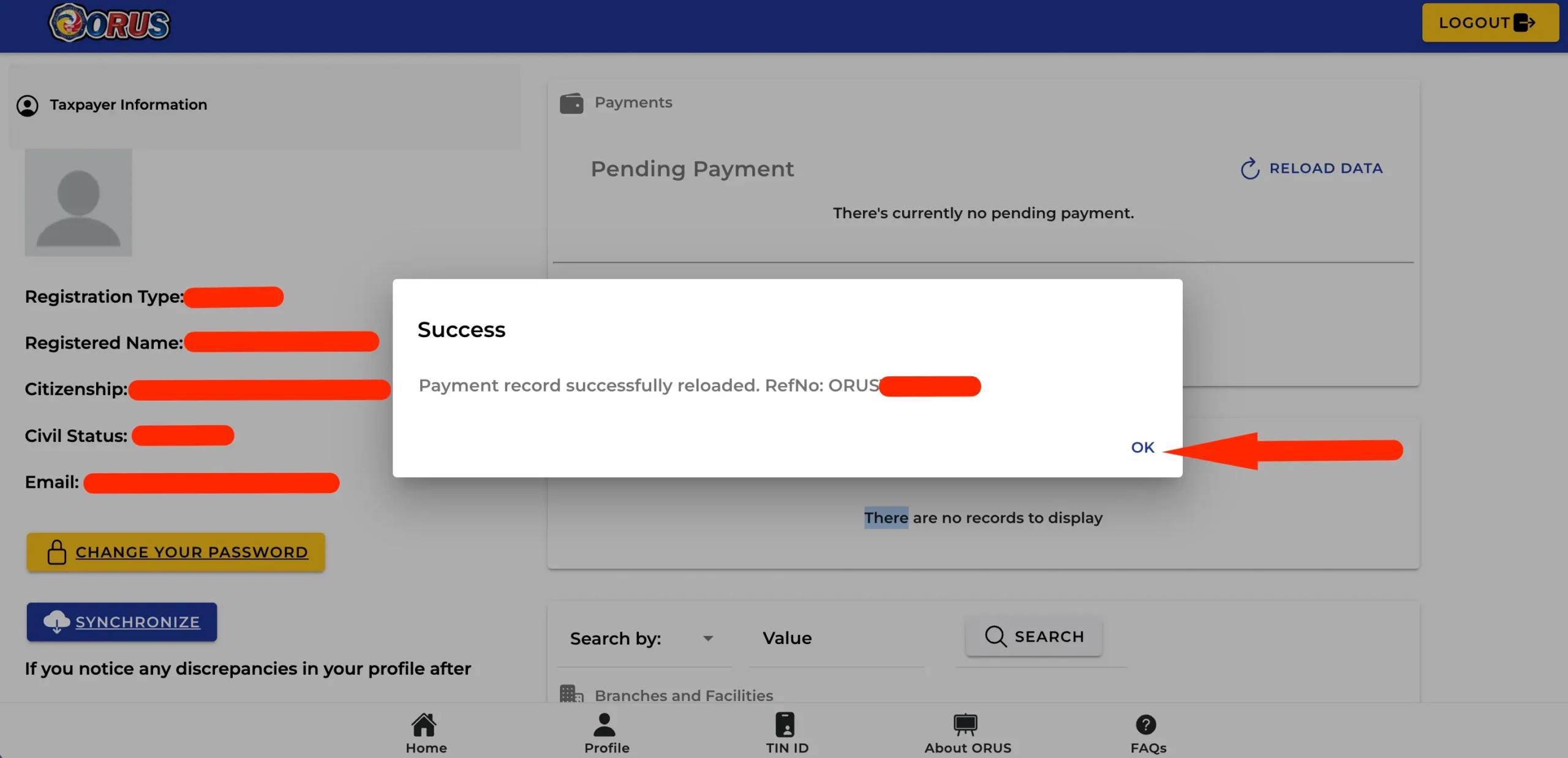
Step 6: Click OK.
Click OK after confirming the reloading of your data.
Step 7. Log out and sign in again
After synchronizing and reloading your data, log out of your ORUS account. Log back in and navigate to your PROFILE page once more.
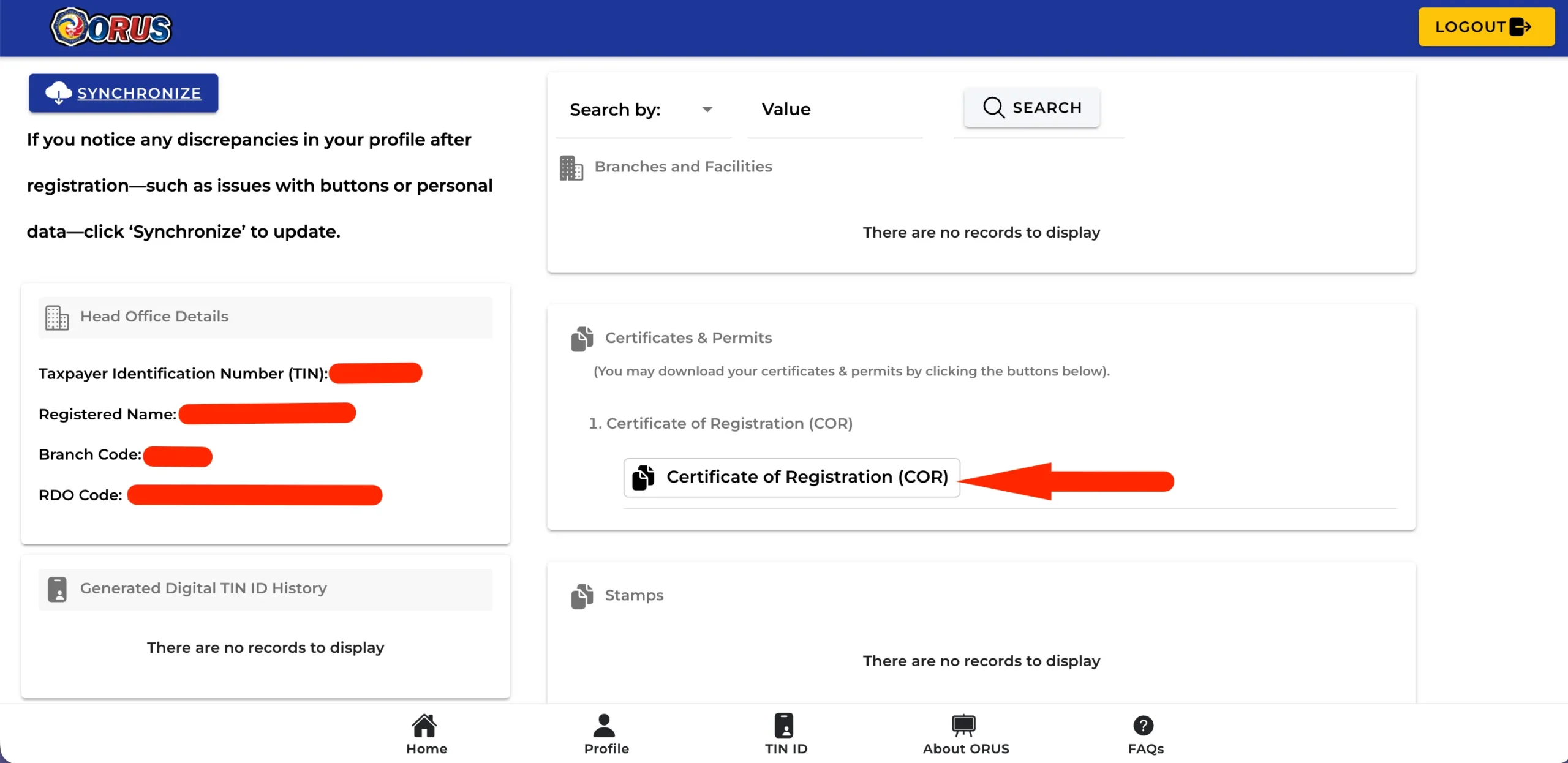
Step 8. Generate a new Certificate of Registration
Look for the CERTIFICATES & PERMITS section. From there, generate or download your latest Certificate of Registration (COR).
Make sure you’re using the newly generated document rather than the previous copy that displayed the error.
Step 9. Scan the new COR’s QR code
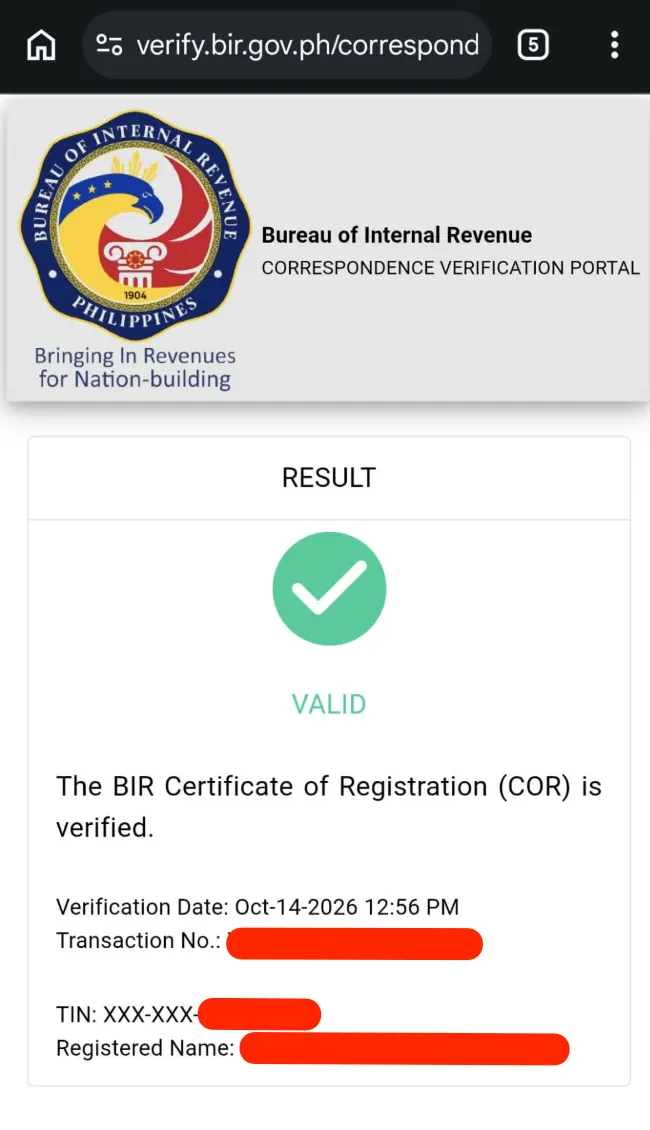
Scan the QR code printed on your newly generated COR. It should redirect you to the BIR’s verification website:
https://verify.bir.gov.ph/correspondence/
Check whether the document can now be verified successfully.
What If the QR Code Still Shows “Invalid”?
If the error persists, return to your ORUS Profile and repeat the synchronization process described in Step 3. You can then generate another fresh copy of your COR and scan its QR code again.
If you’ve tried these steps several times without success, contact your Revenue District Office (RDO) and ask them to verify your registration records and investigate the QR code issue.
Keep in mind that this procedure is an unofficial workaround, not a confirmed or official BIR fix. An “Invalid” result on the verification website does not, by itself, establish that your BIR registration is invalid.
Important Reminder
This guide is intended for taxpayers who have already completed their BIR registration and have an ORUS account. If you haven’t registered your business with the BIR yet, you’ll need to complete the registration process first.
Once your registration is complete, you can return to this guide and follow the steps above to obtain an updated COR and check its QR code.
I hope this workaround helps other business owners who encounter the same frustrating “Invalid” error when verifying their BIR Certificate of Registration.